
The external access feature allows external meeting participants to access and edit meeting minutes and their pending items via a web link, without requiring full system access.
Activating External Access
To use external access, it must be activated in two places. Both activations are mandatory for external access to work.
Company-Wide Activation
Navigate to the admin menu via the three bars in the top right of the project overview or by clicking the company logo in the top left. This option is only available to superusers.
In the company settings, scroll down to find the External Access section (1). Activate it so that the web link is displayed, through which external meeting participants can access the system. The web link can be copied (2) or opened directly (3) and is generally structured as follows: https://app.realview.ch/company
You can send this link to external meeting participants so they can register and log in to view the meeting minutes and edit the pending items assigned to them.


Project-Specific Activation
After the company-wide activation, external access must also be activated for each desired project. Navigate to the admin menu via the three bars in the top right of the project overview or by clicking the company logo in the top left. This option is only available to superusers.
Open the project details of the desired project and activate External Access (1). Repeat this step for all projects where external participants should have access to their pending items.


Important: Both activations (company and project) are required! If either activation is missing, external access will not work.
Who is External Access Suitable For?
External access is particularly suitable for people who are not part of the internal team but still need visibility into their pending items and relevant minutes:
- External companies such as contractors, subcontractors, or suppliers
- Clients and principals who want to track project progress
- Project partners without their own REΛLVIEW license
- Temporary project participants who are only involved for a limited period
- External consultants or subject matter experts
These individuals receive restricted, secure access only to:
- Their own assigned pending items
- Minutes in which they are recorded as participants
- The ability to add remarks and mark pending items as completed
- No access to other projects, participants, or pending items
Access is intentionally limited to ensure data security and to provide external individuals only with the information relevant to them.
Preparing Participants
Before an external person can use the access, they must be recorded as a meeting participant in a protocol.
To do this, navigate to the desired project and protocol and add the person under participants. It is important to ensure that the email address is entered exactly, as registration will not work otherwise.
Use unique email addresses: Ensure that each external person has a unique, personal email address. Avoid shared addresses such as info@company.com.
External Usage
Once an external person has been recorded in a protocol and has received the link, they can register, view the meeting minutes, and access their pending items.
Registration and Login
When you open the received link in your browser, a login page appears with a field for your email address. It is important to enter the email address with which you are recorded in the meeting. By clicking Continue, a confirmation link will be sent to you by email — provided your email address has been used as a meeting participant.
Open the confirmation link to set a password. You can then log in using your email address and the password you have set.
If you are recorded as a meeting participant in multiple projects, the projects will be displayed.
Via the project (1), you can view the meeting minutes in which you are recorded as a participant. Via the green icon, you can access your pending items (2) assigned to you.
 Meeting Minutes
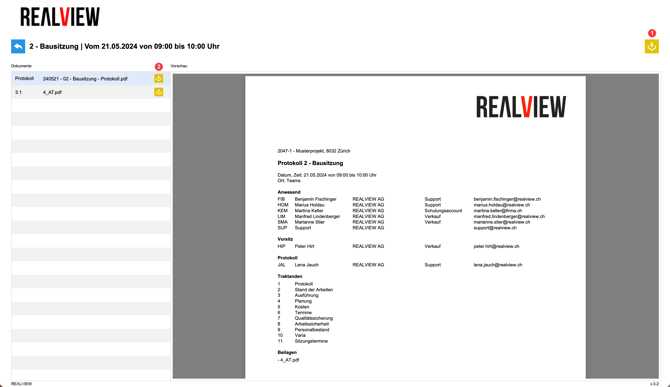
You can now view the meeting minutes. On the left side, the protocol is displayed first, followed by the attachments. You also have the option to download the protocol and attachments:
- Download the protocol and all attachments (1)
- Individual download of the protocol or individual attachments (2)

My Pending Items
You can switch between open and completed pending items (1). A PDF (2) of the displayed pending items can also be generated.
You have the option to enter a remark (3) and mark the pending item as completed (4). The remark and completion status can subsequently be adopted by the protocol author.

