The functions are identical on mobile phones and tablets, but the display varies.
Downloadlink REΛLVIEW App iPhone / iPad
Downloadlink REΛLVIEW App Android
❗ The view in the mobile app differs from the desktop version!
Overview
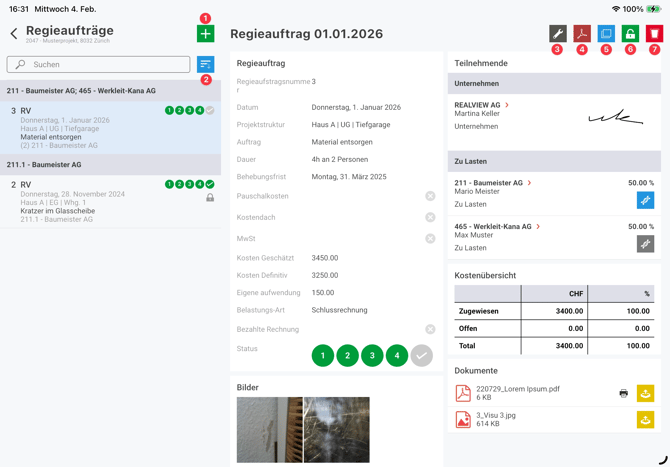
You will see an overview of the production orders you have created. Production orders that have already been locked are marked with a lock.
You can create a new work order using the green plus sign (1).
You can use the sort icon (2) to adjust the sorting of the management orders. You can sort the management orders by company, charge, date, or number.
When a management order is selected, the information about this file note is displayed.
The management order can be edited using the wrench icon (3).
The PDF can be created using the PDF icon (4).
The cost order can be copied using the blue icon (5). If participants have already been entered, they can also be copied.
Until it is locked (6), the PDF contains a watermark with the words “Preliminary draft.” Once a production order has been locked, it can no longer be edited. If the lock is subsequently removed, all participants' signatures will be deleted.
The production order can be deleted using the trash can icon (7). The production order can only be deleted if it is not locked.
Create new work order
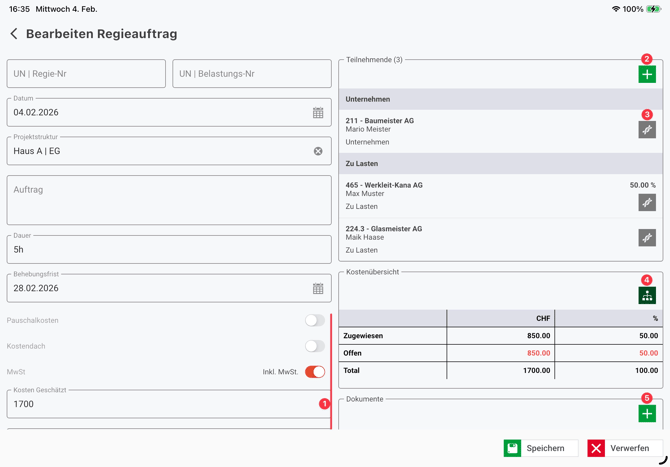
In the new cost order, various information about the order can be entered, such as the order, the duration, or the repair deadline.
The costs (1) can be entered either as flat-rate costs, with a cost ceiling, or with the estimated and final costs. In addition, you can select whether the costs are exclusive or inclusive of VAT.
By clicking on the green plus sign next to Participants (2) If the company does not yet exist, it must be created via the address list. For participants in the On account category, a fixed amount or percentage amount can also be entered.
The DNA icon (3) can be used to add a signature or a placeholder for a signature. If no signature has been stored, the icon is gray. If a digital signature has been added, the icon turns dark blue. If the icon is light blue, a placeholder has been stored. The person is listed on the PDF for signing.
Costs that have not yet been assigned can be distributed to participants in the “To be charged” category using the green icon (4).
Documents can be uploaded from your device using the green plus sign next to Documents (5).
You can add images using your device's camera, your device's photo library, or the project's image gallery.