The functions are identical on mobile phones and tablets, but the display varies.
Downloadlink REΛLVIEW App iPhone / iPad
Downloadlink REΛLVIEW App Android
❗ The view in the mobile app differs from the desktop version!
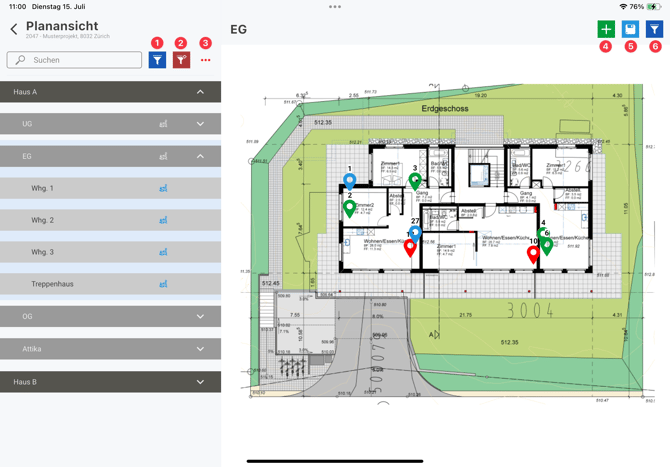
In the plan view, you can select the desired project structure and display the plan as well as the defects/pending issues included in it. Only those defects/pending issues for which a plan marker has been set are displayed. The plan marking colour depends on the status and can be set in the desktop version and project settings.
The blue filter icon (1) in the project structure can be used to search for the desired project structures using free text. You also have the option of displaying only those plans for which a plan has been stored. The red filter icon (2) can be used to reset the filtering of the project structure to the default.
The following additional functions can be accessed via the three dots (3):
- QR code: Use your mobile phone or tablet to scan the QR code that was previously printed on the desktop version via the label. This automatically filters according to the scanned project structure.
- Expand/collapse: Expand or collapse all substructures at once.
A new plan marker can be set using the green plus sign (4). The new pending item is then displayed and further information can be entered.
The template memory (5) can be used, for example, to preset the acceptance type and project structure. The desired properties can be set using the spanner symbol. When a new pending item is then entered, the preset properties are automatically filled in.
The pending item filter (6) can be used to set which pending items are to be filtered and then displayed on the plan.

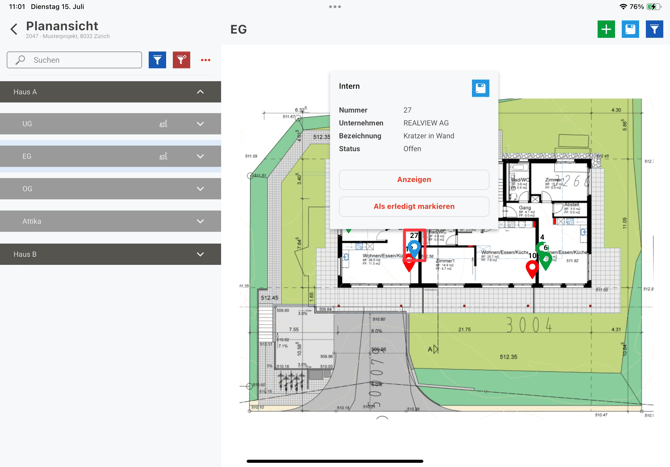
The pending item – in this example, pending item no. 27 – can be selected directly on the plan to display the number, company, description and status. If you want to view all the details of the pending item, you can display the pending item. You also have the option of marking the pending item as completed via the plan view.