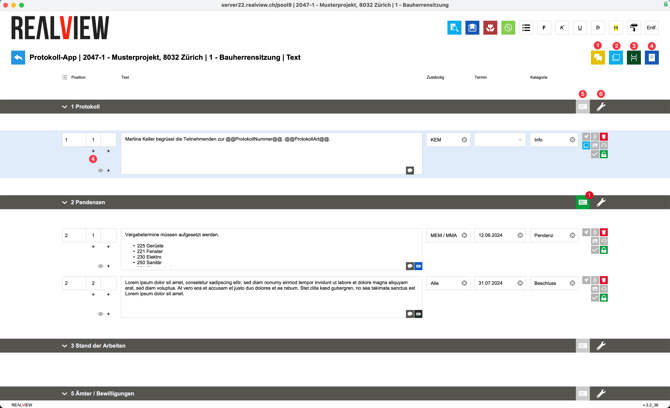
If an agenda item was added later or removed from the text area, it can be added using the yellow icon (1).
The light blue icon (2) can be used to copy text entries to the same or another log and project. Please refer to the section below on copying text entries.
In the PDF, a page break is automatically inserted after each text entry when the page is full. If you want the page break to be at a different point, you can insert a manual page break (3).
A new text entry can be added using the dark blue icon (4). If there is no text entry for an agenda item, the agenda item can be selected and the text entry added. It is also possible to create a new text entry for the individual text entries using the plus sign (4). The first plus sign creates a new text entry with the next number (example 1.2). Selecting the second plus sign creates a subtext (example 1.1.1).
If the pending icon is green (5), there are still open pending items for this agenda item. The pending items can be opened and edited via the icon. Pending items are edited in the same way as in the pending items list.
The wrench icon (6) can be used to delete an agenda item. You can also specify whether the agenda item should appear on the PDF of the invitation.
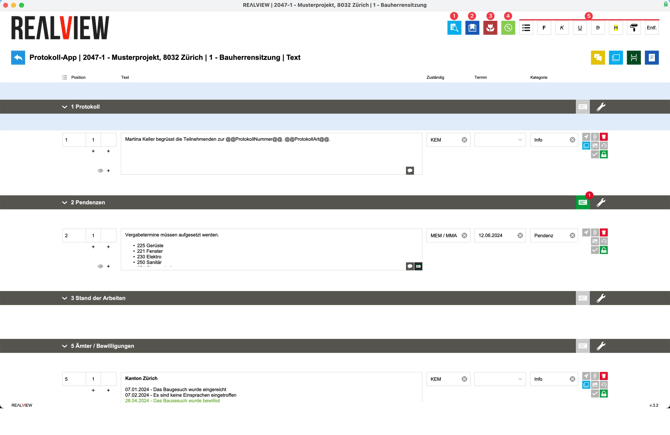
The preview (1) opens as the PDF currently appears. To ensure that the preview does not take too long to generate, only the text area is created. If you want to create the PDF with a cover sheet, list of pending items, and list of resolutions, you can do this in the overview by clicking Create PDF.
If you are in a text, placeholders (2) can be added. The placeholders are used so that automatically calculated information does not have to be entered manually. A list of possible placeholders is displayed. For example, the date of the minutes or the date of the next meeting can be stored.
Various symbols (3) can be added to entries. The symbols are visible in the text and are also displayed on the PDF. A maximum of two symbols can be displayed.
The navigation (4) allows you to jump directly to an entry or agenda item without having to scroll to the relevant place in the minutes.
All white icons (5) affect the formatting in the text and in the PDF printout. From left to right, you have the following formatting options:
- Bullet points
- Mark text as bold
- Mark text as italic
- Mark text as underlined
- Mark text as strikethrough
- Highlight text in yellow
- Adjust text color (cyan, purple, blue, red, orange, green, gray, black)
- Remove formatting
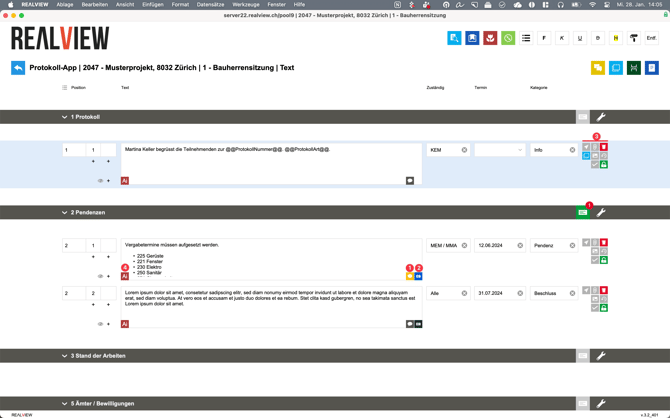
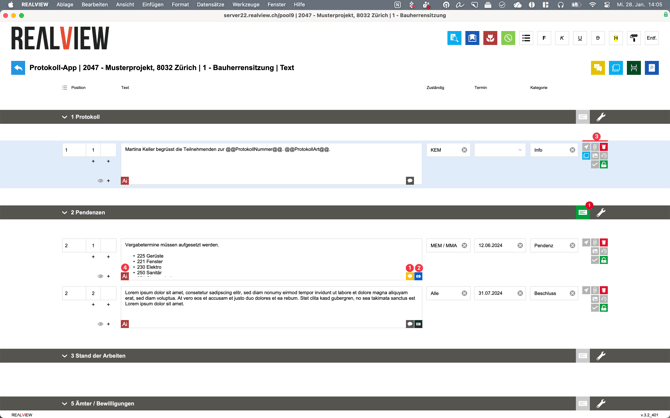
The speech bubble (1) can be used to add notes to a text entry. Once notes have been added, the icon turns yellow. The notes can only be viewed via the icon and are not printed on the PDF.
For pending items/resolutions, short texts (2) can be entered, which then appear in the pending items/resolutions list. This option must be activated by a superuser in the admin menu.
Various settings (3) can be made for each text entry. The explanation of the individual symbols can be found below, from top left to bottom right.
- Display text on the invitation. If the paper airplane icon is blue, the text will be displayed on the PDF printout.
- Attachments can be added using the paperclip icon. PDF attachments can be added directly to the minutes in the settings under Print.
- The trash can icon deletes the text entry. The text entry can only be restored by REΛLVIEW. To do this, contact support at 044 512 18 00 or support@realview.ch.
- Text entries are automatically transferred to the next log. If the light blue icon is deactivated, the text entry is not copied. This function is not available for pending items and resolutions, as these are carried over to the pending items/resolutions list.
- An image can be attached to a text entry. On the PDF printout, the image is displayed above the text entry by default. If this needs to be changed, a superuser must report this to the REΛLVIEW support via support@realview.ch.
- The history of the text entry can be opened via the clock icon and an older text entry can be restored. The change is saved each time you click out of the text entry.
- If the check mark is activated, the options Responsible, Date, and Category disappear. Instead, a lock is activated, which can be switched between Yes and No. This option must be activated by a superuser in the admin menu.
- Only superusers can lock and unlock text entries. This option must be activated by a superuser in the admin menu.
With the help of AI cross-reading (4), the text is checked and improved by AI and can then be accepted. This option must be activated by a superuser in the admin menu.

Copy text entries
Selecting the light blue icon (1) opens a window. Here you can select the text entries to be copied (2). The selected text entries are then added to a single agenda item.
Copying to (3) copies the text entries, while closing (4) closes the newly opened window. If you have already selected Copy, they remain in the clipboard.
Reset (5) resets the copied text entries.
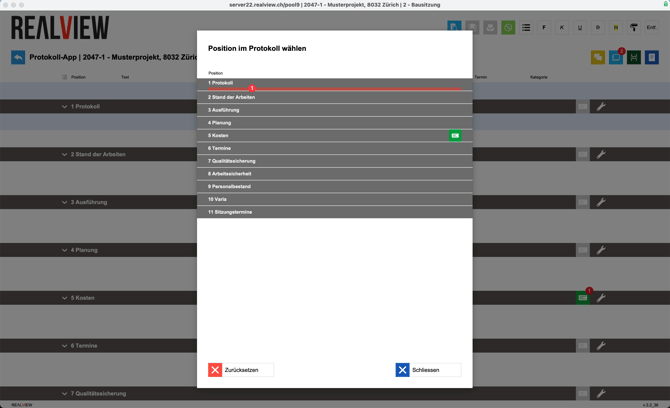
You can then switch to the desired project and protocol and select the light blue icon again. You can then select the desired agenda item (1) and the copied text entries will be inserted.