The functions are identical on mobile phones and tablets, but the display varies.
Downloadlink REΛLVIEW App iPhone / iPad
Downloadlink REΛLVIEW App Android
❗ The view in the mobile app differs from the desktop version!
Overview
The pending issues/deficiencies from the standard filtering are displayed to you.
You can create a new task / defect using the green plus sign (1).
Using the QR code (2), you can scan a project structure so that the filter directly enters this project structure.
In the filter (3), you can specify which pending items/defects with which properties (acceptance type, project structure, area, company, etc.) should be displayed.
The three dots give you access to additional options.
For each project structure, you will see the following icons (4) from the left, depending on whether a plan or plan reference is stored in the structure:
- Shows you the stored plan with all located pending items/defects
- Shows you the stored plan excerpt with all located pending items/defects
- Create a new pending issue/defect on the project structure so that the project structure is already filled in for the pending issue/defect.

Additional options
The default filter (1) resets the filter settings. You can create your own default filter on the desktop in the project settings under Search favourites.
Sort (2) the displayed pending items/defects according to one of the following properties: number, project structure, company, unread messages (conversation), acceptance type, date of discovery, deadline for rectification
Create a PDF (3) from the displayed pending items/defects, which can also be used directly for mass mailing.
With the acceptance report (4) , the displayed pending items/defects can be added to an existing or new acceptance report. All pending tasks/defects displayed are always transferred. The pending issues/defects displayed can be set using the filter.
You can select pending issues/defects using Select (5). You can then create a PDF from the selected pending issues or transfer them to an acceptance report.

Large List View
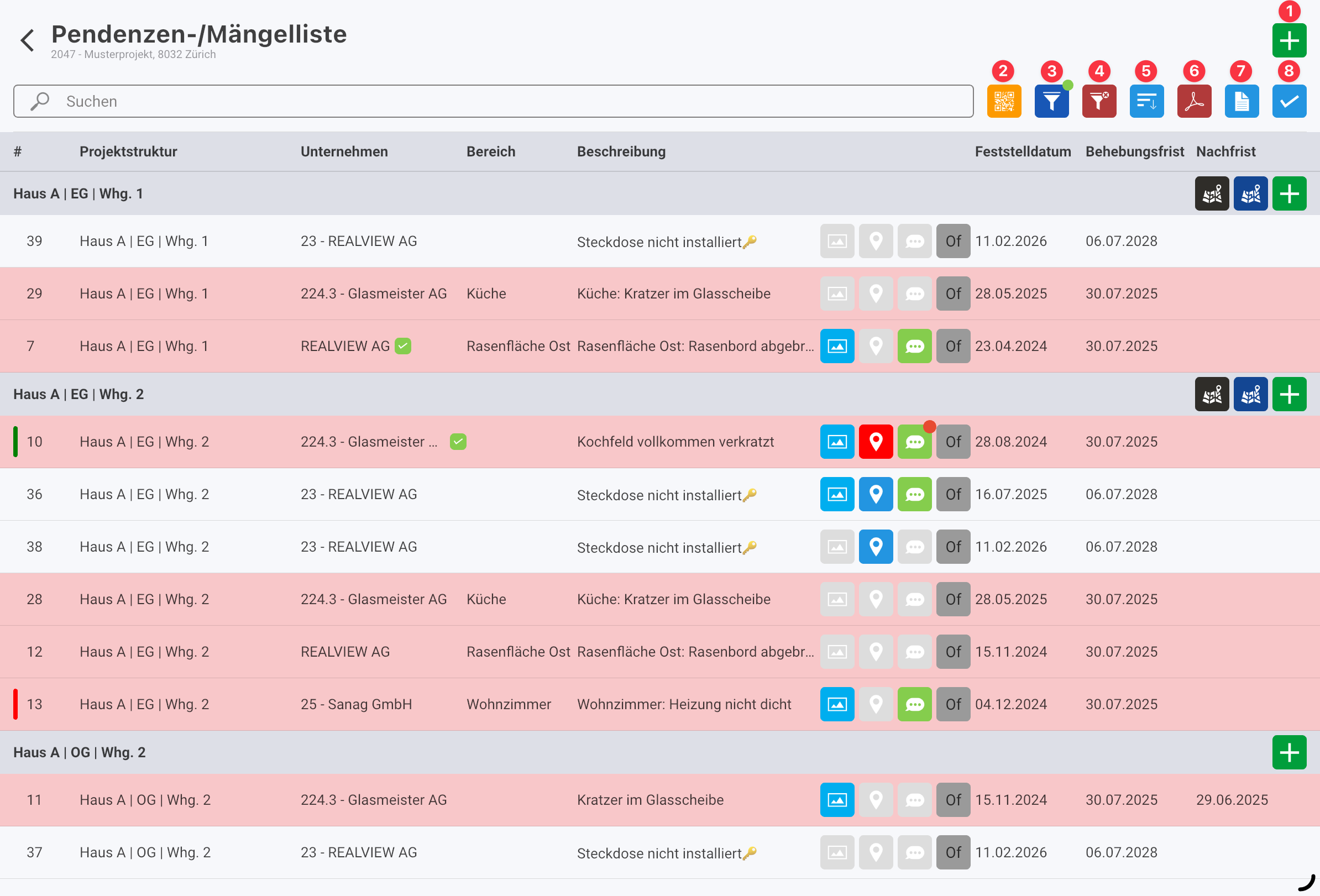
If you’ve enabled the large list view in the settings, the list will be displayed as follows:
You can create a new pending item / defect using the green plus sign (1).
Using the QR code (2) , you can scan a project structure so that the filter automatically applies that project structure.
In the Filter (3), you can specify which pending items / defects with which properties (acceptance type, project structure, area, company, etc.) should be displayed.
The default filter (4) resets the filter settings. You can create your own default filter on the desktop in the project settings under Search Favorites.
Sort (5) the displayed pending items/defects by one of the following properties: Number, Project Structure, Company, Unread Messages (Conversation), Acceptance Type, Date Identified, Resolution Deadline
Create a PDF (6) from the displayed open items/defects, which can also be used directly for bulk sending.
Using Add to Acceptance Report (7), you can add the displayed open items/defects to an existing or new acceptance report. All displayed open items/defects are always included. You can use the filter to select which open items/defects to include.
Use Select (8) to choose outstanding items or defects. You can then create a PDF from the selected items or transfer them to an acceptance report.
View task/defect
You can select the desired pending task/defect in the overview to display the details of this pending issue/defect. Here you also have the option of switching to the conversation tab.
The spanner icon (1) displays the editing mask with detailed information about the pending issue/defect.
The template memory (2) can be used, for example, during an acceptance inspection to transfer the acceptance type and project structure from the first completed pending issue. To do this, you can mark the desired properties with a check mark and then save the template memory. When a new pending item is then entered, the selected properties are filled in automatically.
Copies (3) the pending item. When copying, the plan marking, images, recording date and rectification deadline are not copied.
The pending item is deleted using the recycle bin (4).

View conversation about task / defect
In the conversation, you will find the complete history between the company and you. To reply to a message from a company, you can select the reply icon (1).
If you want to edit a message you have entered, you can do so using the pencil icon (2). You can also delete a message (3).
If the company is listed directly, you can use the refresh button (4) to check whether there is a new conversation.
You can enter your message in the text field and publish it by clicking Send (5).

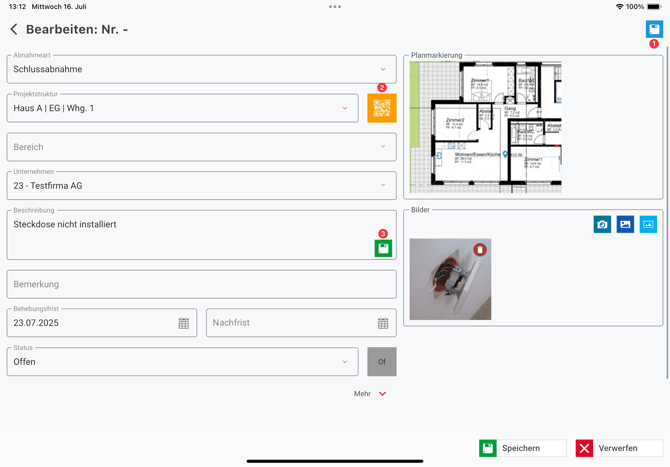
New task / defect
A new pending item can be created in the overview of pending items using the green plus sign. Pending items can also be created directly for individual structures using the green plus sign. The project structure is then pre-filled.
Here, you can now enter the details of the pending issue/defect. The pending issue is automatically saved as soon as the acceptance type, project structure and company have been filled in. The pending issue number is also only set after the mandatory fields have been filled in.
With the template memory (1), the acceptance type and project structure can be taken from the first pending item filled in, for example during an acceptance. To do this, you can mark the desired properties with a tick and then save the template memory. When a new pending item is then entered, the selected properties are filled in automatically.
You can scan the QR code (2) of the project structure to have the project structure filled in directly. The QR codes can be created on the desktop via Print label.
If you have stored a company with a BKP and a description, you can use the BKP template memory (3). This stores the text under the description for this BKP and can be imported using the arrow symbol in the text field.
This is used if you want to use a text frequently for a BKP so that it does not have to be entered manually each time.