The functions are identical on mobile phones and tablets, but the display varies.
Downloadlink REΛLVIEW App iPhone / iPad
Downloadlink REΛLVIEW App Android
❗ The view in the mobile app differs from the desktop version!
You will see an overview of all addresses in the project. If you select an address, the company information will be displayed.
You can add a new address by clicking on the green plus sign (1).
You can edit an existing company using the spanner icon (2).
The bin icon (3) deletes the address. Only addresses that have not yet been used can be deleted.
If you want to narrow down the list, you can do so using the filter (4). You can filter by category or by free text.
Reset the filter by selecting the red filter icon (5). All addresses will then be displayed again.
You can generate the address list as a PDF (6).
If the main number (7) and email address (8) of the company are filled in, you can call them directly or open an email with the company as the recipient.
Create a QR code (9) that can be scanned to create a contact.
You also have the option of creating a contact directly with the VCF (10).
Companies that are used for defects receive a unique link (11), which can be copied into the address list. With this link, companies have access to their pending issues/defects. This link is also sent in the mass mailing and can be seen there on the PDF as a QR code.
To quickly add a new person (12) to a company, you can use the small green plus sign. Persons who have an asterisk (*) after their name are set as the responsible person in the settings.


Add address
You can create a new address by clicking the green plus sign in the upper-left corner. You can then search for the address among the addresses already entered or in a search engine to import the business. Alternatively, you can enter the address manually.
The input mask for the company will then open. Here you have the following options to choose from:
- Each address must be assigned to a category. If the desired category is missing, it can be added by a superuser or the project administration in the project settings.
- You can add or remove BKP numbers using the plus sign above the BKP numbers.
- If Use for defects is active, the company can be selected when entering pending issues/defects in the pending issues/defects list. The option is automatically activated for the Company category.
- If an address is deactivated, it is highlighted in grey in the address list. The address is no longer visible on the PDF printout.
- Under Internal comments, comments can be entered that can only be viewed by persons who have access to REΛLVIEW and the project.

Add person
The green plus sign next to the persons shows you the list of persons to be imported who are registered with this company. If no persons have been registered yet or the desired person is missing, this can be added New.


You can select the desired person to open further information. You also have the option here to edit a person's information (1) or delete the person (2). Only addresses that have not yet been used can be deleted.
For each person, you have the following options from left to right, depending on which details have been filled in:
- Call direct line
- Call mobile
- Open email
- Create QR code to save the information
- Create VCF


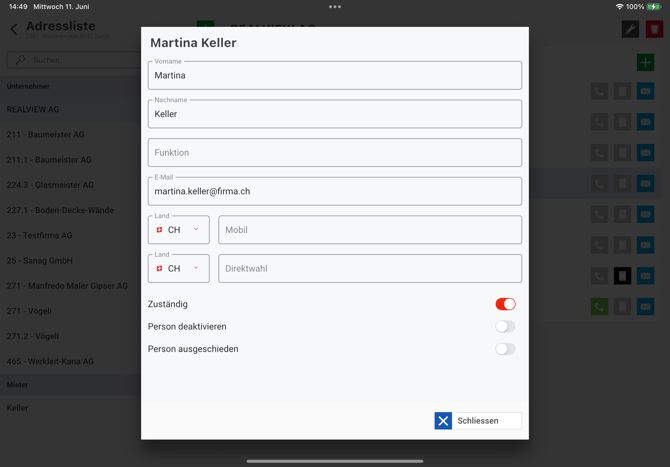
When you create a new person or edit a person by clicking on them, you can edit or add to the information. You also have the following options:
- If one or more persons are marked as Responsible, they are marked with an asterisk (*) in the address list. When the list of pending issues/defects is sent to the companies, the responsible persons will receive the email. If no person is listed as responsible for a company, the company's email address is used when sending the pending/defect list.
- If a person is deactivated, they will still be displayed in the address list, but will be greyed out. The person will no longer appear when the PDF is generated.
- If a person has left the company, they will still be displayed in the address list, but will be greyed out and crossed out. The person will no longer appear when the PDF is generated.