Login
You can log in using your email address and password via the link provided. If your account has not yet been created, you can register for access (1).


Register for Access
Please fill in the required information. You will then receive a verification code by email, which you must enter when logging in. After that, you can log in to Construction Logistics using your email address and the password you have set.


Overview
The overview contains the following sections:
- Appointment Booking: Create new appointment bookings
- Bookings: Overview of all assigned bookings
- Documents: All important documents are stored here


Create a New Appointment Booking
First, select the delivery route (1). You will then see the available spaces (2) that can be selected for this delivery route.


If services have been assigned to the selected space, you can now choose them. If no service is selected, you can continue without one. If selecting a service is mandatory, you must choose one.
If no services are available, this step will be skipped.


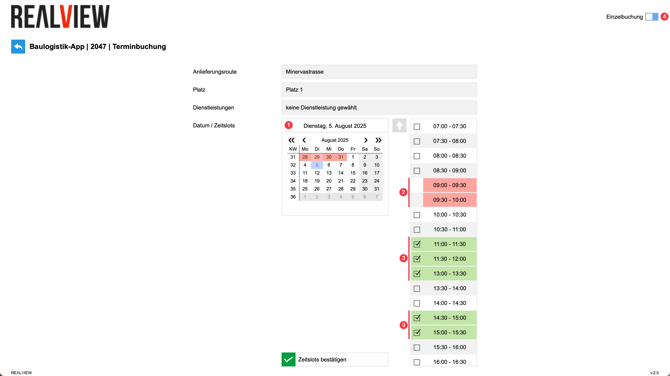
You can now select the desired date (1). Time slots that are already occupied are displayed in red (2). You can select your preferred time slots (3).
You also have the option to create a recurring booking (4).
Consecutive time slots are combined into one booking, while non-consecutive time slots result in separate bookings (example: 1st booking 08:30–09:15, 2nd booking 09:45–10:15).

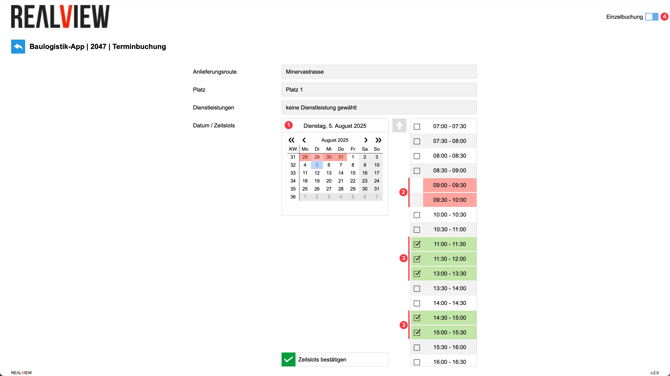
For a recurring booking (1), you can specify the date range (2) for the repeated bookings and define how often they should repeat (3). Finally, select the desired time slots (4).
Consecutive time slots are combined into one booking, while non-consecutive time slots result in separate bookings (example: 1st booking 08:30–09:15, 2nd booking 09:45–10:15).

Next, enter the supplier details. The company, email address, and supplier name are always mandatory fields. Once a booking has been confirmed, cancelled, or rescheduled, the supplier will also be notified by email.
The mobile phone number and billing address can be configured as optional or mandatory fields depending on the project.
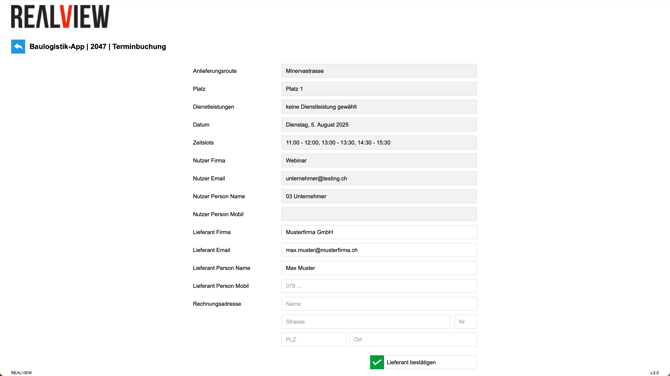

Finally, complete the remaining mandatory fields. These fields are defined by a Project Manager.
As soon as a booking is confirmed, canceled, or rescheduled, the supplier is also notified by email.


Booking Overview
You can use the filters (1) to narrow down the displayed bookings or reset them to the default filter settings (2). Bookings are marked with the following three status codes and colors:
- RES: The booking has been requested but not yet confirmed.
- GEB: The booking has been confirmed.
- STO: The booking has been cancelled.
You can reschedule a booking using the clock icon (3) or cancel it using the red X (4). This is only possible while the booking status is still Reserved.


Documents
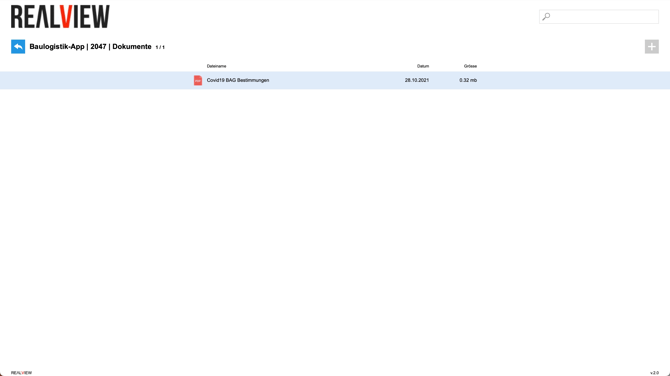
Here you will find all documents uploaded by the project team. These documents are publicly accessible to everyone who has access to Construction Logistics.
By selecting a document, you can view it and download it if desired.