
There is currently an issue in the Claris FileMaker web access where images cannot be uploaded. When attempting to upload an image, the error message No image file appears.
Über nachfolgenden Workaround kann das Bild trotzdem hochgeladen werden. Du kannst Dir dazu auch die anzeigen lassen.
You can use the following workaround to upload the image anyway. You can also view the Video Guide for this process.
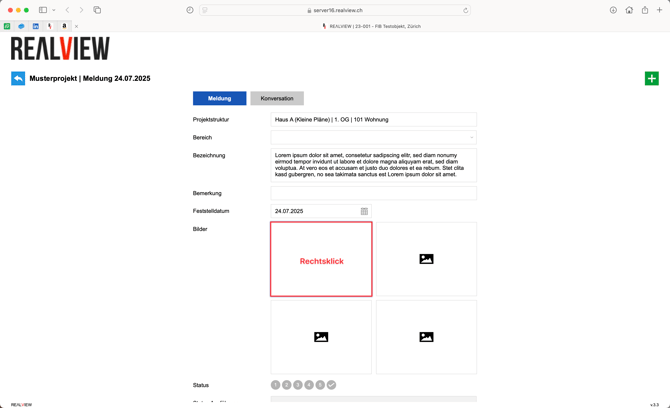
Click on the upload container. It is important that no file is selected at this stage; instead, cancel the process by clicking Cancel.
The upload field should now have a blue border. Right-click inside the upload field.
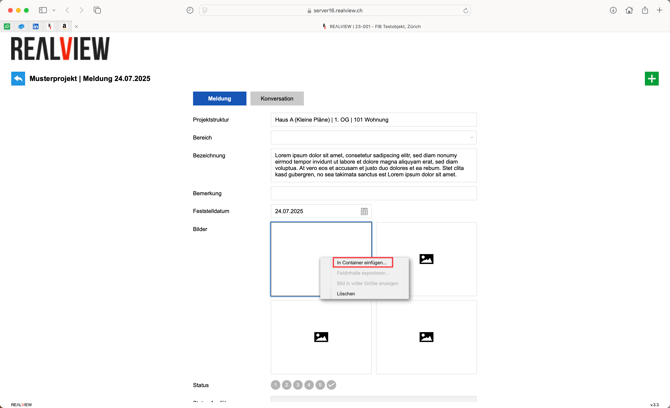
Select Insert into Container from the menu.
You can now click Choose File and navigate to your image file in Explorer or Finder, then select it.
Once the image file has been selected, click Upload to complete the image upload process.