The functions are identical on mobile phones and tablets, but the display varies.
Downloadlink REΛLVIEW App iPhone / iPad
Downloadlink REΛLVIEW App Android
❗ The view in the mobile app differs from the desktop version!
When you open the app for the first time, you can log in with your email address and password. You can view your saved password by pressing and holding the eye icon.

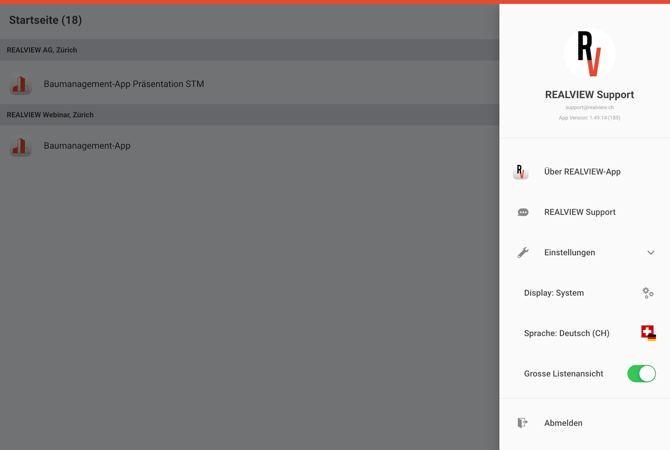
The home page now displays all the databases to which you have access. If, for example, you have access to different companies, these will also be displayed. You can access the information/settings for the app from anywhere using the three bars at the top right.


The side menu shows you which email address you are logged in with and which app version is installed.
In the settings, you can enable/disable dark mode. Here you can choose between System (your device settings), Light and Dark.
You can also change the app language. Please note that this does not affect the project language. The project language can be changed by a superuser in the project settings.
In addition, the expanded view of the Pending Items/Defects list can be enabled or disabled. In the expanded view, the pending items and defects in the Pending Items/Defects list are displayed in a list without detailed information. If this view is disabled, the detailed view of the pending items and defects is always opened.
You can also log out via the side menu. When you log out, your downloaded offline files will be deleted – make sure that all offline data is synchronised before you log out!
ATTENTION: a deleted offline file cannot be recovered!

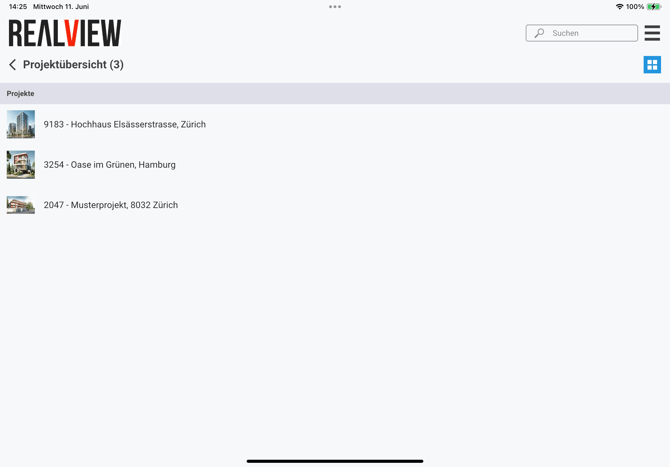
Once you have selected the construction management of the desired company, the projects will be displayed. To view the project If you do not see a project, you have been assigned to the project. You can assign yourself to the project via a superuser using the project settings.
The blue icon switches the view of the projects between list view and portal view.
If an icon with a circle and a line is displayed for a project, an offline version has already been downloaded for this project.