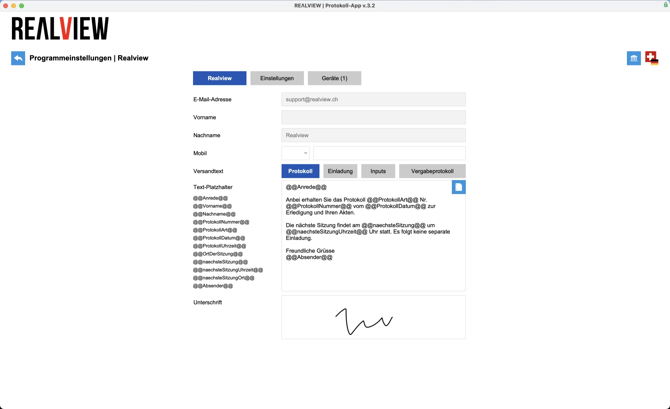
User settings
In the user settings, you can enter your mobile number and customize the default mailing texts. On the left-hand side of the default mailing texts, you will find placeholders that you can insert into the mailing text so that, for example, the protocol type, protocol number, and protocol date automatically appear in the text.
The default mailing texts can be set individually for sending the minutes, the invitation, the inputs, and, if active, for the award minutes. You can reset to the company default at any time using the blue icon in the text field.
You can customize the language in the upper right corner. The set language is automatically stored for the minutes you enter. The language can be adjusted for each protocol in the protocol settings. You can find out how to adjust the protocol language under Create protocol - More.
In addition to the language setting, superusers can access the admin menu. This option is only available to superusers.
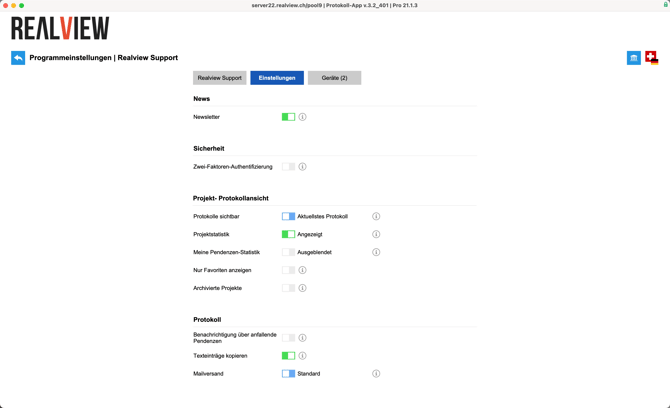
Settings
In the settings, you can make changes to your account and your preferences. Next to each setting, you will find an explanation of the setting via the info icon.
News
- Newsletter: If this option is enabled, you will receive emails informing you about new features in REΛLVIEW. You will always receive emails about maintenance work.
Security
- Two-factor authentication: Increase the security of your data with a confirmation code. You will receive this code via text message each time you log in.
Project log view
- Logs visible: This function allows you to set whether only the most recent log or all logs in the series should be displayed by default.
- Project statistics: This option allows you to set whether or not you want the statistics for the project to be displayed in the project.
- My pending tasks statistics: This option allows you to set whether you want to see statistics for your pending tasks or not.
- Show favorites only: If this option is active, only projects that you have marked as favorites will be displayed in the project overview.
- Archived projects: If this option is active, archived projects will be displayed in the project overview.
Minutes
- Notification of pending tasks: You can enable email notifications for your pending tasks.
- Copy text entries: You can set whether text entries that are not categorized or categorized as info should be copied by default when copying or transferring to the new log of the series.
- Mail delivery: You can choose between the following three delivery methods:
- Standard: Emails are generated on the local device, attachments are added via a download link.
- Attach attachments to the email: Emails are generated on the local device, but the attachments are attached to the email as files.
- In-app email delivery: Emails are prepared and opened for sending within the app, and the attachments are attached to the email.

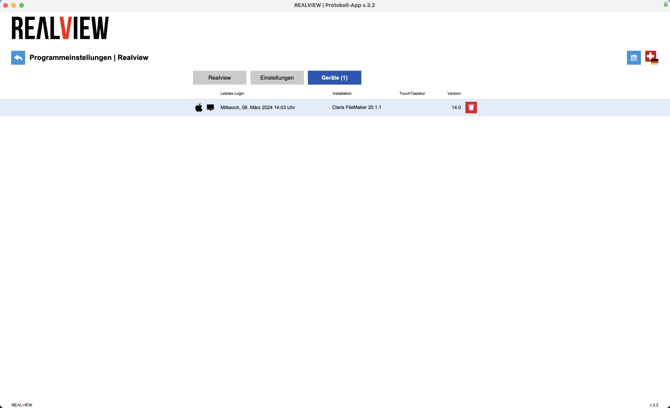
Devices
Under Devices, you will find a list of all devices you have logged into so far. If you want to remove an outdated device, you can delete it using the red trash can icon. Please note that your account can only be logged into four devices at a time.
Under Devices, you will find information about the operating system and device type, when you last logged in on this device, and which version is installed.
If you are logged in on a convertible notebook and can therefore use your device as a tablet and notebook, you can also set whether you want to use the touch keyboard or the physical keyboard of the device.