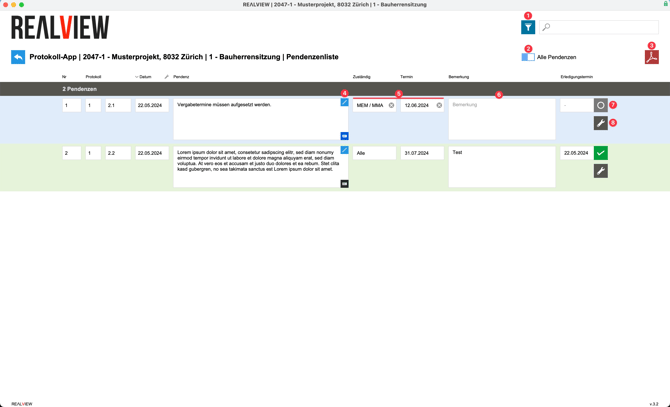
The filter icon (1) can be used to filter pending items by responsibility. You can switch between current and all pending items (2).
The PDF icon (3) can be used to export a list of all displayed pending items as a PDF file.
If the function that allows pending items to be edited in the pending items list is activated in the admin menu, this can be done using the pencil (4). The setting in the admin menu can only be activated by a superuser.
The responsibility and deadline can be deleted and reset by selecting the x (5).
A comment (6) can be entered for a pending item; the comment is also displayed in the printout of the pending items list.
Clicking on the round icon (7) marks a pending item as completed. The current meeting date is set as the completion date. If you want to use a different completion date, you can click on the field to the left of the icon instead and select the desired date.
The wrench icon (8) can be used to create a follow-up pending item or a new resolution from a pending item. The follow-up pending item or the new decision can then be found in the current minutes in the text.