
Depending on your permissions, you have the option to create a new project in the top right of the project overview.


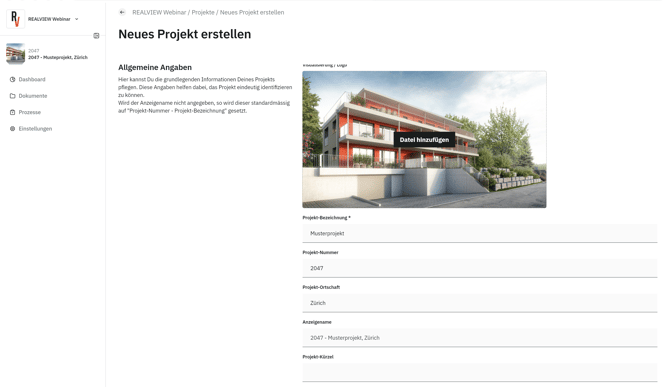
Once the required fields (marked with an asterisk*) have been filled in, the project can be created by clicking Save Changes.
Under General Information, you can configure the following settings:
- Visualization / Logo
- Project Name
- Display Name
- Project Number
- Project Abbreviation
- Project Location
Under Address, the project address can be entered. You can also set the project language under Language Settings as well as the Currency.

Once the project has been created, you can navigate to the project settings and adjust the following advanced settings:
- Define which currency is used in the project.
- The project language serves as a reference for content within the project. The language actually displayed is set in your profile settings.
- Define the working days on which work is carried out in the project. This information is relevant for processes and workflows.
- Use REALVIEW Integrations to store short links to external websites for quick access.
- If you remove the project, all content will be permanently deleted. This action cannot be undone.