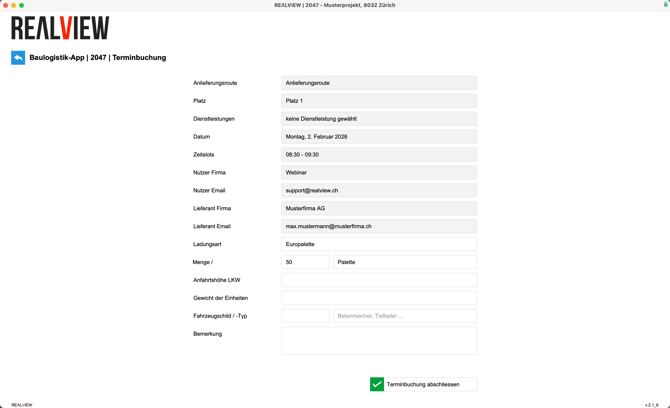
A new booking can be created via the appointment booking function. First, select the delivery route (1). You will then be shown a selection of places (2) that can be chosen via this delivery route.


If services are listed for this location, they can now be selected. If no service is selected, you can continue without a service. If it is set as a mandatory field, a service must be selected. An administrator or project manager can set whether the service is a mandatory field for each place.
If no services are available, this point is skipped.


Now you can select your desired date (1). Time slots that are already taken are displayed in red (2). You can select your desired time slots (3).
You also have the option of creating a series booking (4).
Consecutive time slots result in one booking, while non-consecutive time slots result in another booking (example: 1st booking 08:30 - 09:15, 2nd booking 09:45 - 10:15).


When making a recurring booking (1), you can enter the time frame (2) for the recurring bookings and specify how often the recurrence (3) takes place. Finally, you can select the desired time slots (4).
Directly consecutive time slots result in one booking, while non-consecutive time slots result in another booking (example: 1st booking 08:30 - 09:15, 2nd booking 09:45 - 10:15).


All appointments for your recurring booking will now be displayed. You now have the option to edit/move (1) or remove (2) individual appointments in the series.


Next, the supplier details are entered. The company, email address and name of the supplier are always mandatory fields.
An administrator or project manager can set whether the billing address is a mandatory field for each project.


Finally, please enter the type of load and the quantity. The supplier will then receive a provisional booking confirmation by e-mail.
As soon as a booking has been confirmed, cancelled or postponed, the supplier will also be notified by e-mail.